Everything you need to know about using MixReview.
1. Security
Your audio is confidential. MixReview is built so that only the people you explicitly invite can access your files, and you stay in control at all times.
2. Inviting Clients
You can give clients secure, view-only access to a specific album. Each client gets a personal access code. An email address is optional, a username alone is enough. No account or password needed.
How to invite a client
- Open the album you want to share.
- Open the Share section in the header of the album page.
- Enter a username for the client, along with first and last name. An email address is optional.
- Click "+ Add client".
- Share the access link: click the "Share" button to open the share modal. From there you can copy a ready-made invite message, open a pre-filled draft in your mail client, or send the invitation directly via MixReview (email required).
- The client opens the link and signs in with their username or email and the personal access code. No account needed.

What clients can and cannot do
Clients can:
- Listen to all mixes (Stereo, Dolby Atmos (Binaural Downmix), Apple Spatial)
- Switch between mixes and track versions
Clients cannot:
- Download any audio file
- See other albums or projects
- Change any settings
Managing existing clients
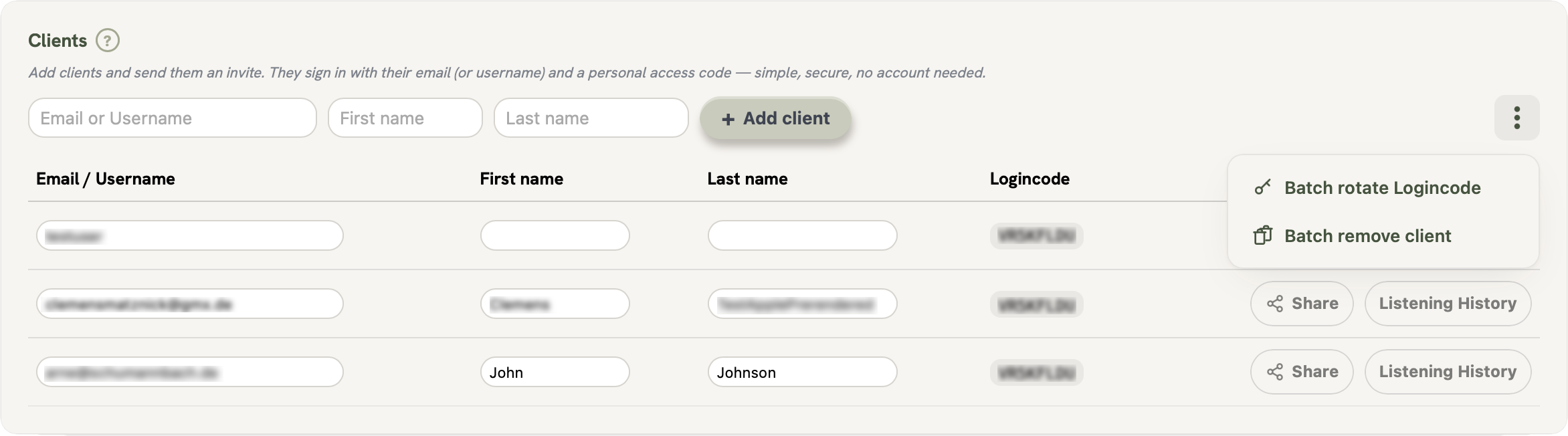
Once a client has been added, their row shows two actions:
- Share: Opens a modal with the access links and additional actions for this client (see below).
- Listening History: Shows which tracks, versions and mix buttons this client played and when, and whether they listened on the web or in the iOS app.
To change several clients at once, open the ⋮ menu next to + Add client:
- Batch rotate Logincode: Select clients and generate new access codes for them. Their old codes and links stop working. Use this to block access without deleting the client.
- Batch remove client: Select clients and remove them. Their codes stop working permanently.
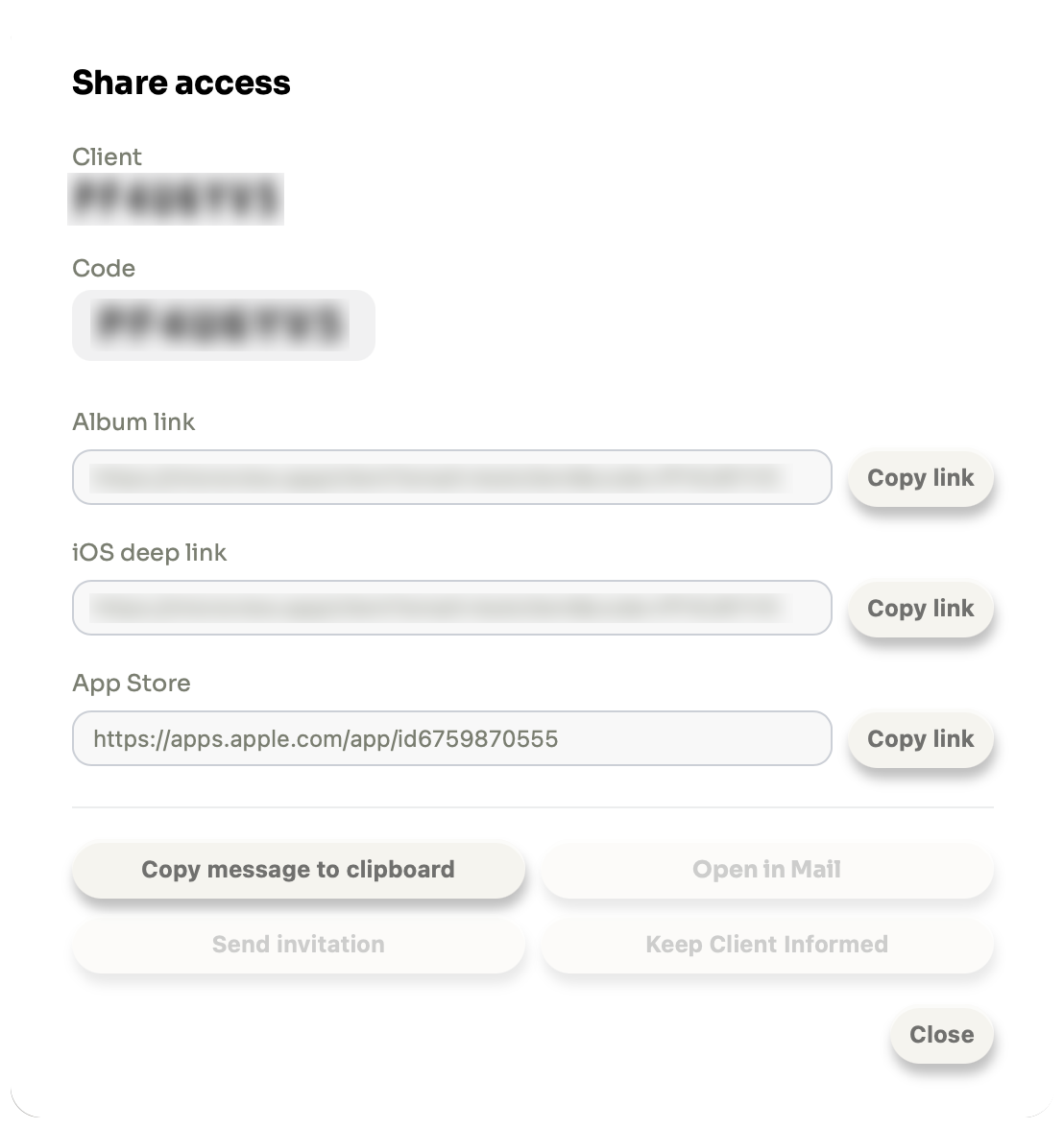
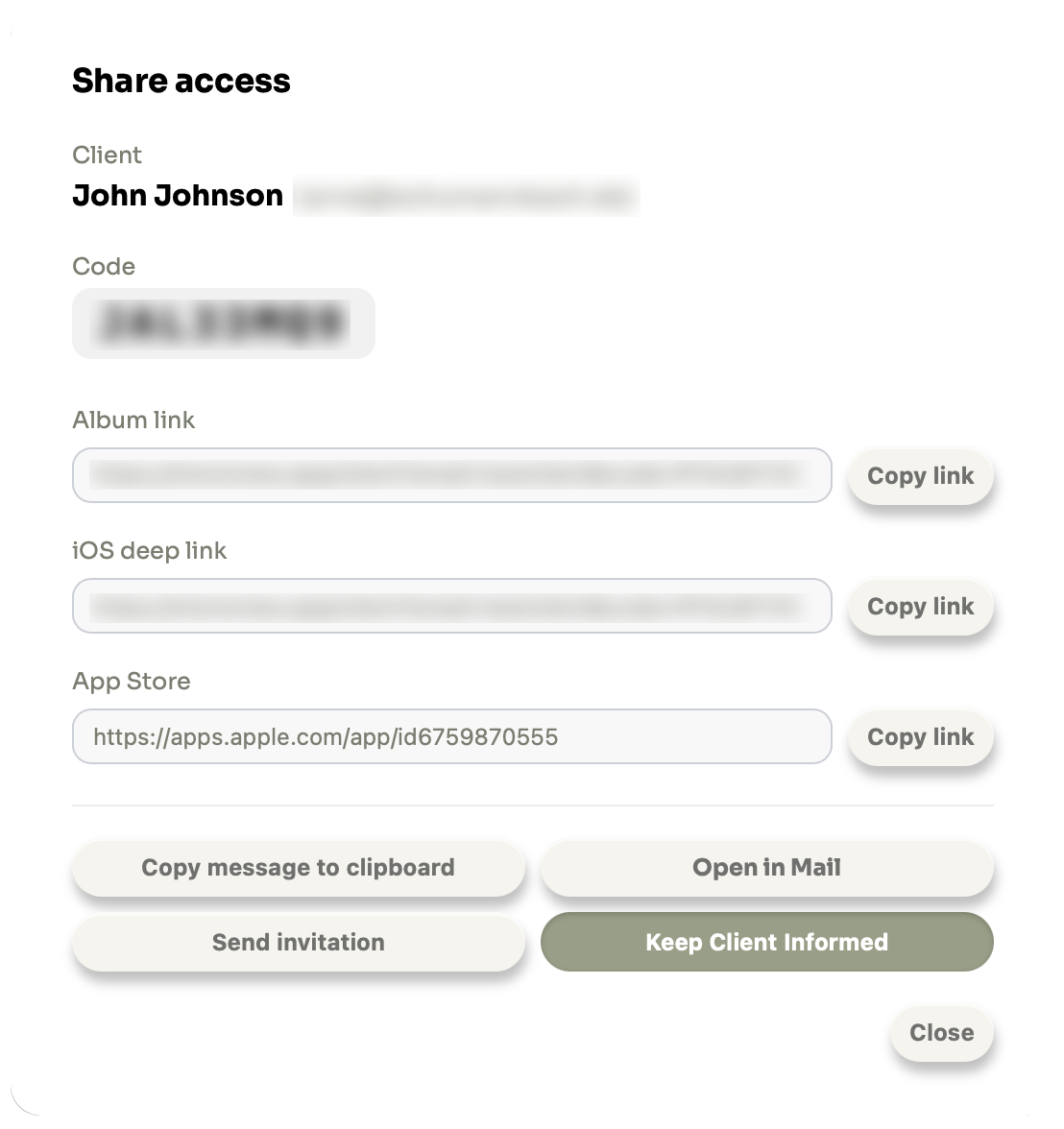
The Share modal contains the following actions. If you added the client with a username only (no email address), the email-related actions are not available.
- Copy message to clipboard: Copies a ready-to-send invite message (including the access link and code) to your clipboard so you can paste it anywhere.
- Open in Mail: Opens a pre-filled draft in your local mail client (e.g. Apple Mail). The subject, login link, and access code are already filled in. You can add a personal message before sending. Only available if the client has an email address.
- Send invitation: Sends the invite email directly via MixReview. Only available if the client has an email address.
- Keep Client Informed: Toggle this on to automatically notify the client by email whenever you upload a new track or a new track version to this album. Toggle it off to stop notifications for that client. Only available if the client has an email address.
3. Batch Upload
Batch upload adds many files to an album in one go. In both album types MixReview reads the filenames, groups the files into tracks and puts each file on a mix button. You can move any file by drag and drop before you upload. If the guess is wrong for your naming, open Customize Parser and teach it once: your rules are saved to your account.
Stereo Batch Upload
Every track in a Stereo album has free mix buttons: two on Free, four on Studio. Use them for whatever you want your client to compare, for example two mix passes, a vocal up version or single stems.
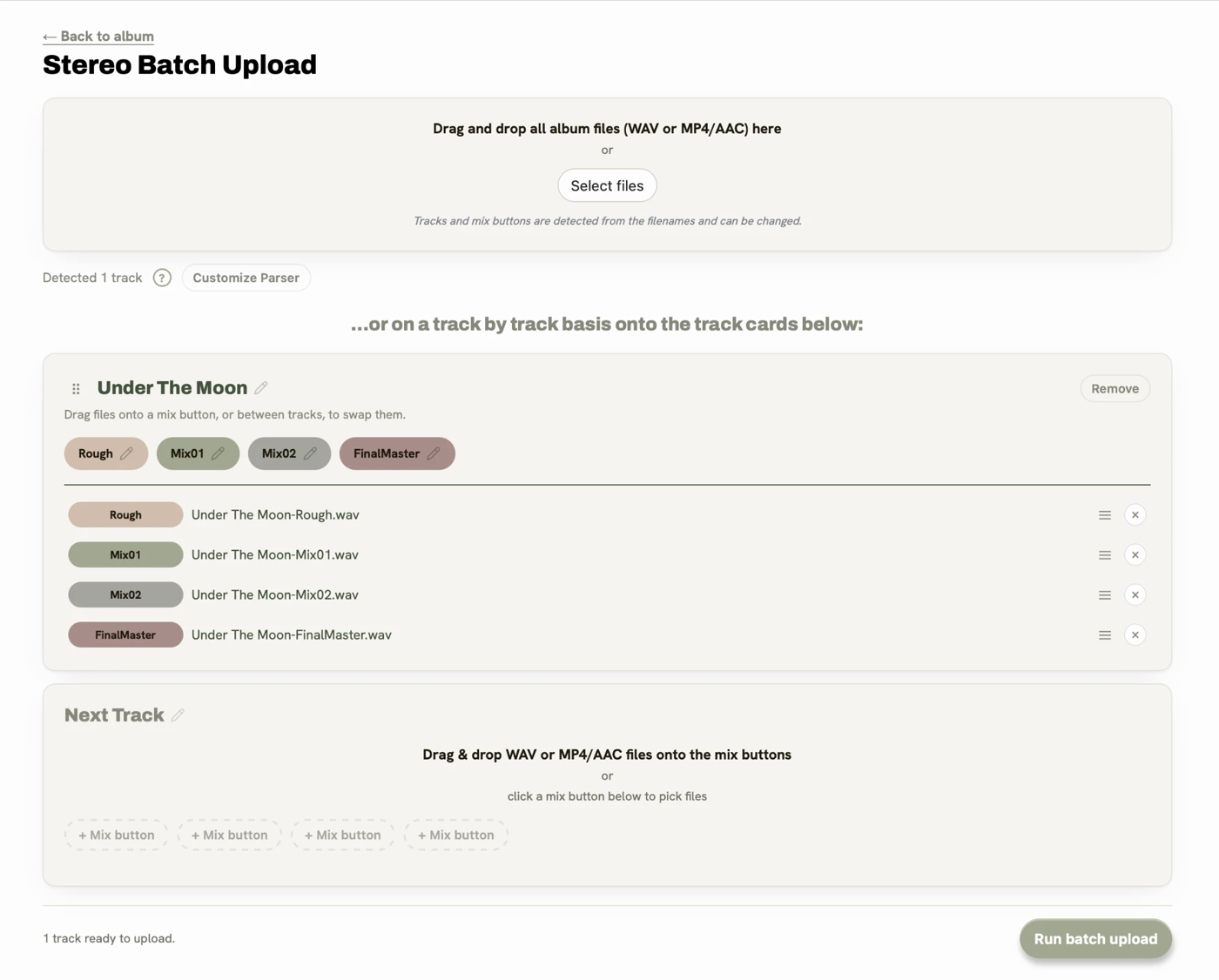
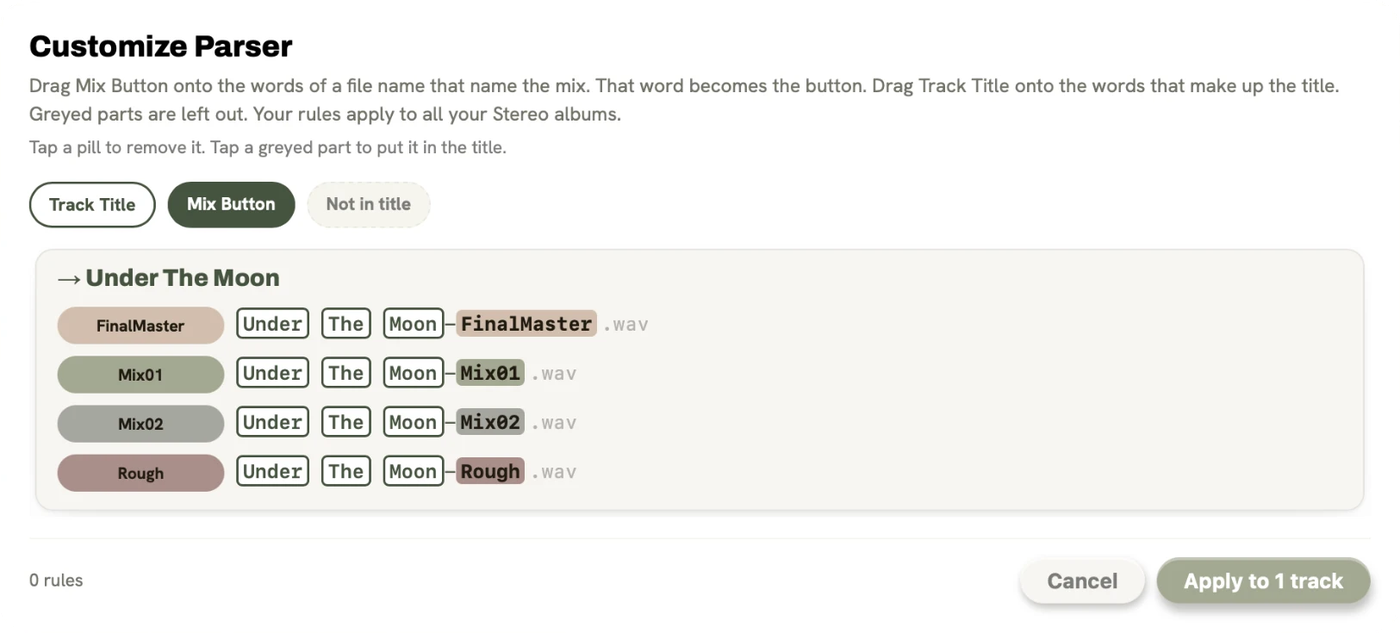
- Drop WAV, MP4 or M4A (AAC) files onto the drop area. Files of the same track land on one card, and the word that differs between them becomes the mix button name, for example
Under The Moon-Mix01.wavandUnder The Moon-Rough.wavgive one track with the buttons Mix01 and Rough. - Drag a file by its handle to another row or another card. Free mix buttons show as empty rows, so you can see where a file can go. Drag a card by the handle next to its title to change the track order.
- Click a mix button label to rename it before you upload. A name you type wins over the filename.
- If a track has more files than mix buttons, the extra files stay unassigned. On Free you can upgrade to Studio or move them to a new track. On Studio a track holds up to four, because all mixes of a version stream at the same time.
- Files the album cannot play, for example MP3 or a Dolby MP4, are refused with a short note under the drop area.
If MixReview splits your filenames the wrong way, click Customize Parser next to Detected N tracks. Drag Mix Button onto the word that names the mix, Track Title onto the words of the title, or Not in title onto words to leave out. Tap a pill to remove it. Your rules apply to every Stereo album.
Supported formats
| Mix button | Format | Notes | Plan |
|---|---|---|---|
| Any mix | WAV | Up to 32 bit / 96 kHz | Free |
| Any mix | MP4 or M4A (AAC) | Smaller files, streamed as uploaded | Free |
Immersive Batch Upload
How to batch upload
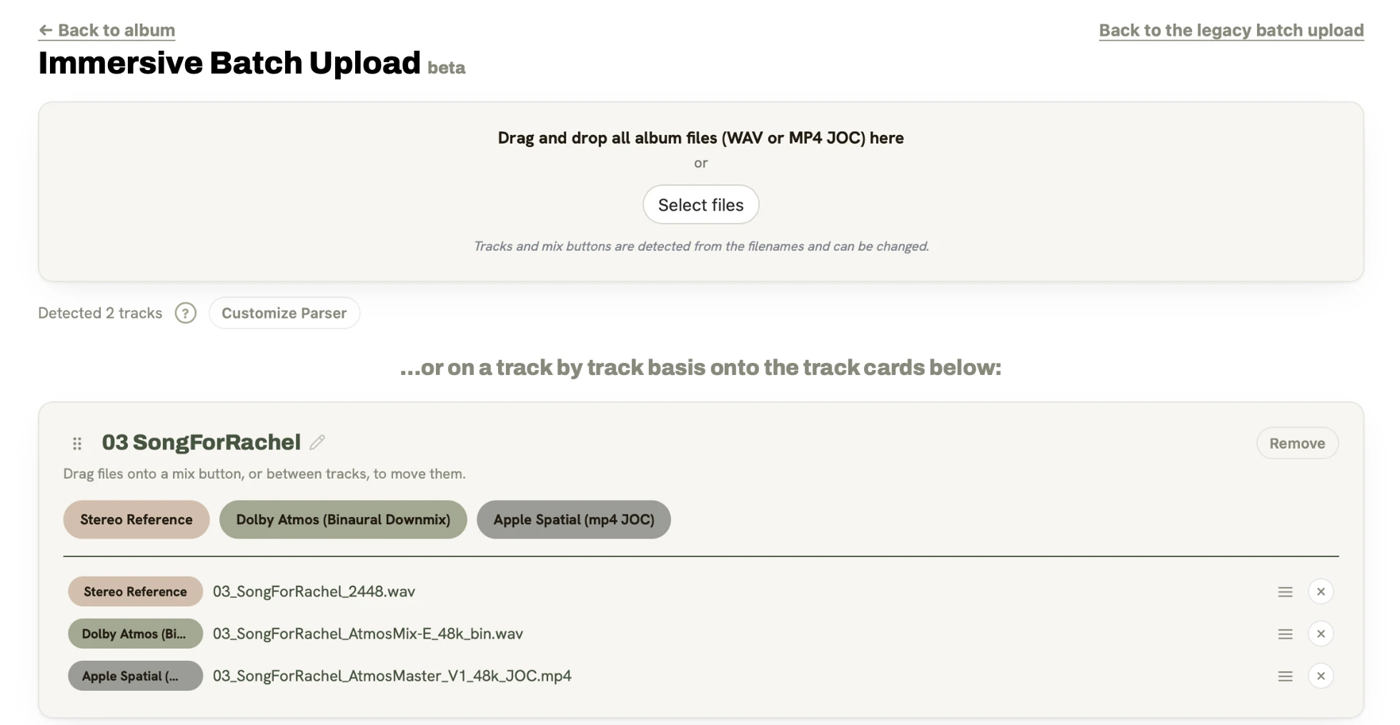
- Open an Immersive album in your dashboard.
- Click Batch Upload for more Tracks in the album.
- Drag and drop your files onto the upload area, or click Select files to pick several at once (⌘+A).
- MixReview reads the filenames and shows one card per track, with each file on its mix button.
- Check the cards, move files if needed and click Upload N files. Progress is shown per file.
File naming convention
MixReview detects the mix button from keywords in the filename. The part before the last _-separated keyword becomes the track name:
Stereo, StereoRef, Dolby, Binaural. Apple Spatial (mp4 JOC) is detected from the .mp4 file extension or from JOC in the filename. If a file lands on the wrong mix button, drag it to the right one. If no mix button fits, it waits under Not assigned until you drag it onto one.How bundling works
After dropping your files, MixReview automatically groups them into track version bundles:
- Files with the same track name land on one card, e.g.
MySong_Stereo.wavandMySong_Binaural.wavbecome two mix buttons of the same track. - The mix button is detected from the filename. The detection learns the naming pattern of your files, so it also works when your names follow your own scheme.
- Drag a file by its handle onto another mix button or another card. The mix buttons stay where they are, only the files move.
- Drop several files onto one mix button or onto Next Track, and MixReview spreads them over the buttons the same way.
- If a file looks like another kind of mix than the button it sits on, a grey hint says so. Move it if that is wrong.
- Drag a card by the handle next to its title to change the track order.
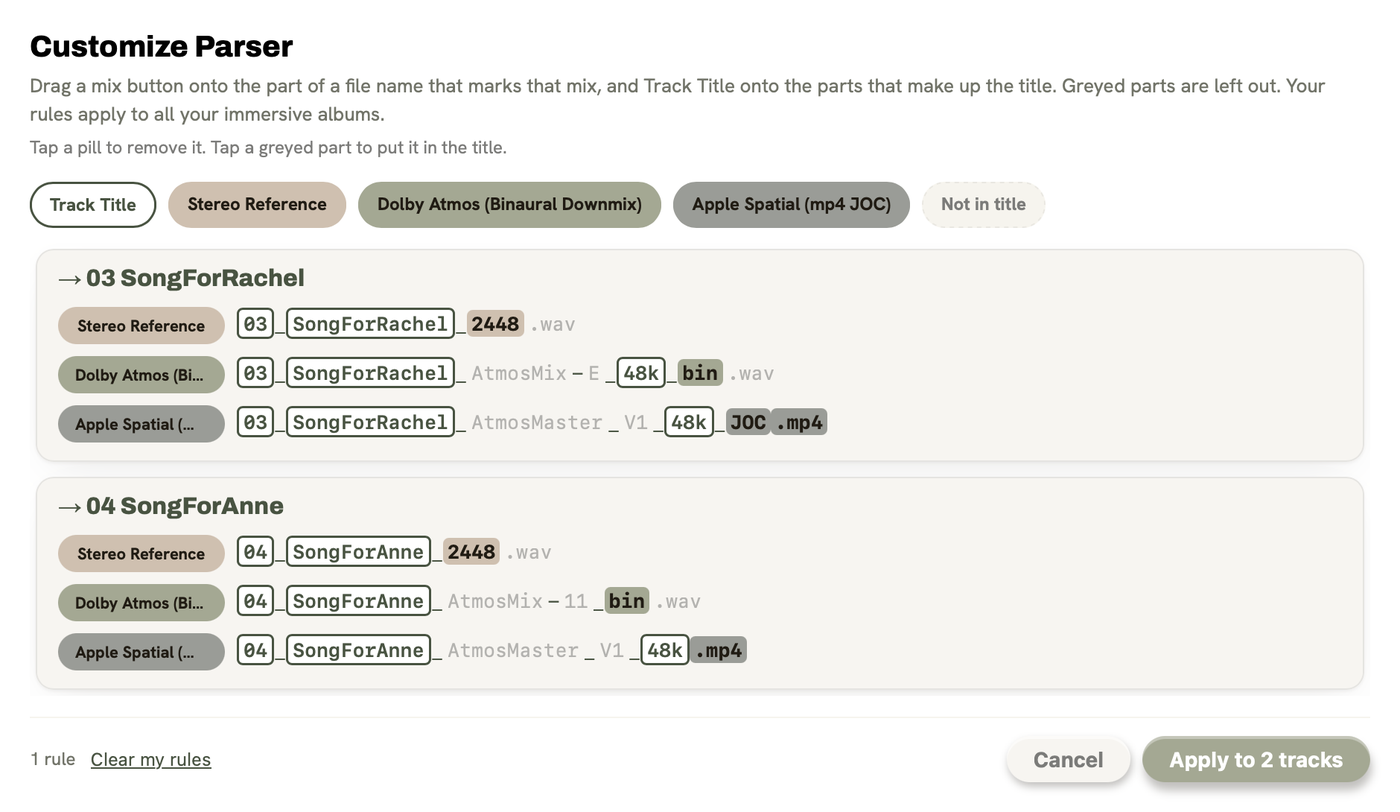
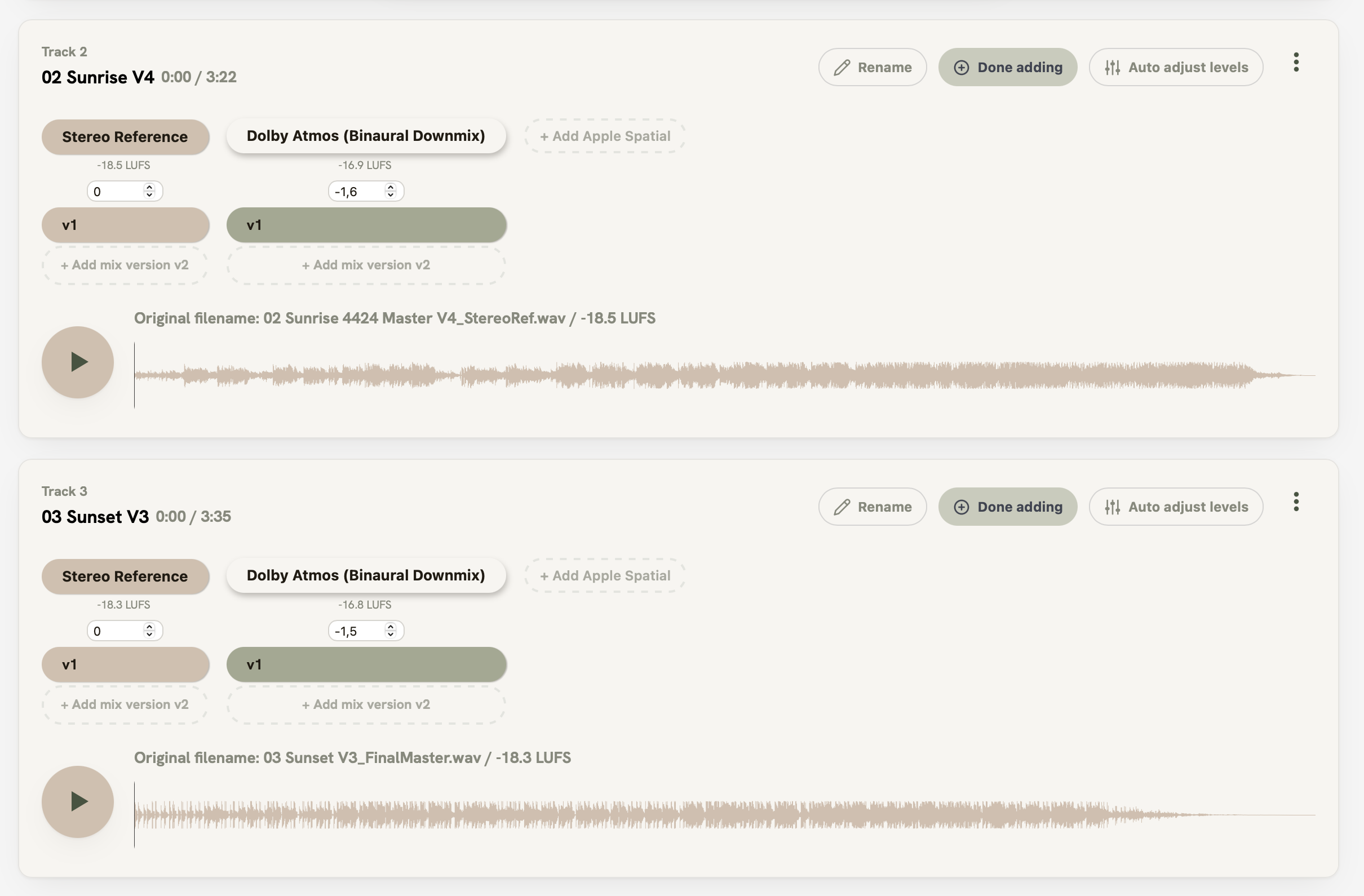
01 BlueSky V3_StereoRef.wav, 01 BlueSky V3_Dolby Atmos Binaural Downmix.wav, 01 BlueSky V3_Binaural.wav, 02 Sunrise 4424 Master V4_StereoRef.wav, 02 Sunrise V4_Stereo.wav and 02 Sunrise V4_Dolby Atmos Binaural Downmix.wav creates three bundles: 01 BlueSky V3 (Stereo Reference + Dolby Atmos (Binaural Downmix)), 02 Sunrise 4424 Master V4 (Stereo Reference only) and 02 Sunrise V4 (Stereo Reference + Dolby Atmos (Binaural Downmix)).If the detection is wrong for your naming, click Customize Parser next to Detected N tracks. Drag a mix button onto the word that marks that mix in your filenames, for example Dolby Atmos onto bin. From then on every file with that word lands on that button. Drag Track Title onto the words that make up the title, so all files of a song end up on one track. Greyed parts are left out, and tapping a pill removes it. Your rules are saved to your account and apply to every Immersive album.
Adding new tracks vs. new versions
The batch upload creates new tracks. To add another version to a track that already exists, use Add Audio on that track in the album view.
- If a card has the same name as a track that already exists, the card says so. Add anyway creates a second track with that name.
- The legacy batch upload (link at the top right of the upload page) still adds a new mix version when the track name matches an existing track.
New mix versions always appear at the top of the track card. The most recent version is always shown first.
Supported formats
| Mix button | Format | Notes | Plan |
|---|---|---|---|
| Stereo Reference | WAV | Up to 32 bit / 96 kHz | Studio |
| Dolby Atmos (Binaural Downmix) | WAV | Binaural-rendered stereo | Studio |
| Apple Spatial (mp4 JOC) | MP4 | Device rendered Apple Spatial | Studio |
4. Single Track Upload
Single track upload adds ONE track, with all its mixes in one go. Use it when the batch upload would be more work than help, for example for a single new song.
Stereo Single Track Upload
To add one track without the batch upload, click Create next Track (or Create first Track in an empty album) at the top of the album view. An empty track card opens with its empty mix buttons.
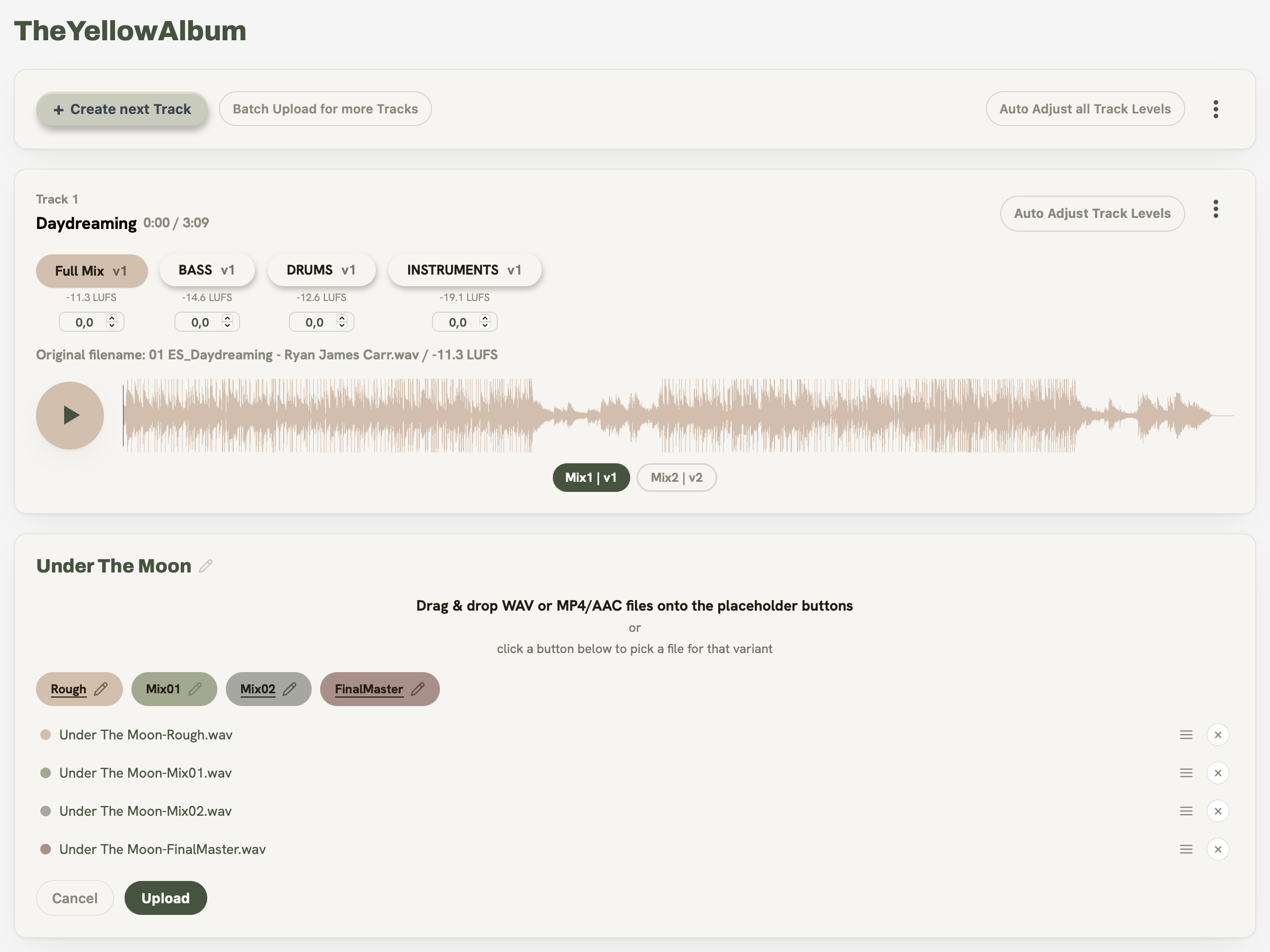
- Drop WAV, MP4 or M4A files onto the mix buttons, or click a mix button to pick a file for it. Each file is listed below in the color of its mix button.
- The track title and the mix button labels come from the filenames. Double click the title or click ✎ on a mix button to rename it before you upload.
- Drag a file by its handle to move it to another mix button, or click × to remove it.
- Click Upload, check the list of files and confirm.
Immersive Single Track Upload
It works the same way in an Immersive album, with two differences: the mix buttons are prelabeled and cannot be renamed, and each one takes its own format.
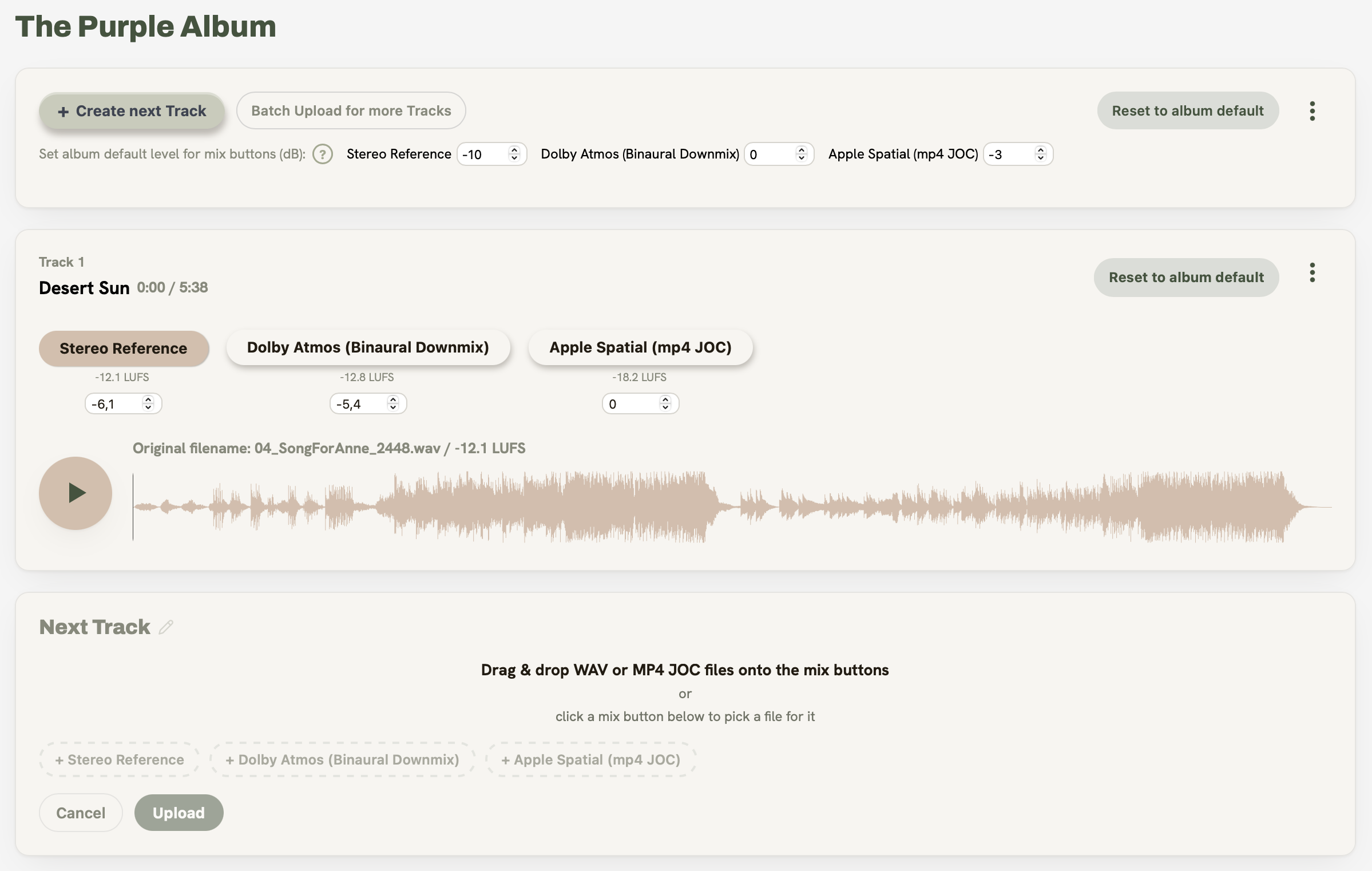
- Stereo Reference and Dolby Atmos (Binaural Downmix) take WAV, Apple Spatial (mp4 JOC) takes MP4. A file in the wrong format is refused with a note, so nothing is saved that cannot play.
- Files cannot be dragged from one mix button to another, because the buttons are different things. Click × and drop the file again.
5. Album View
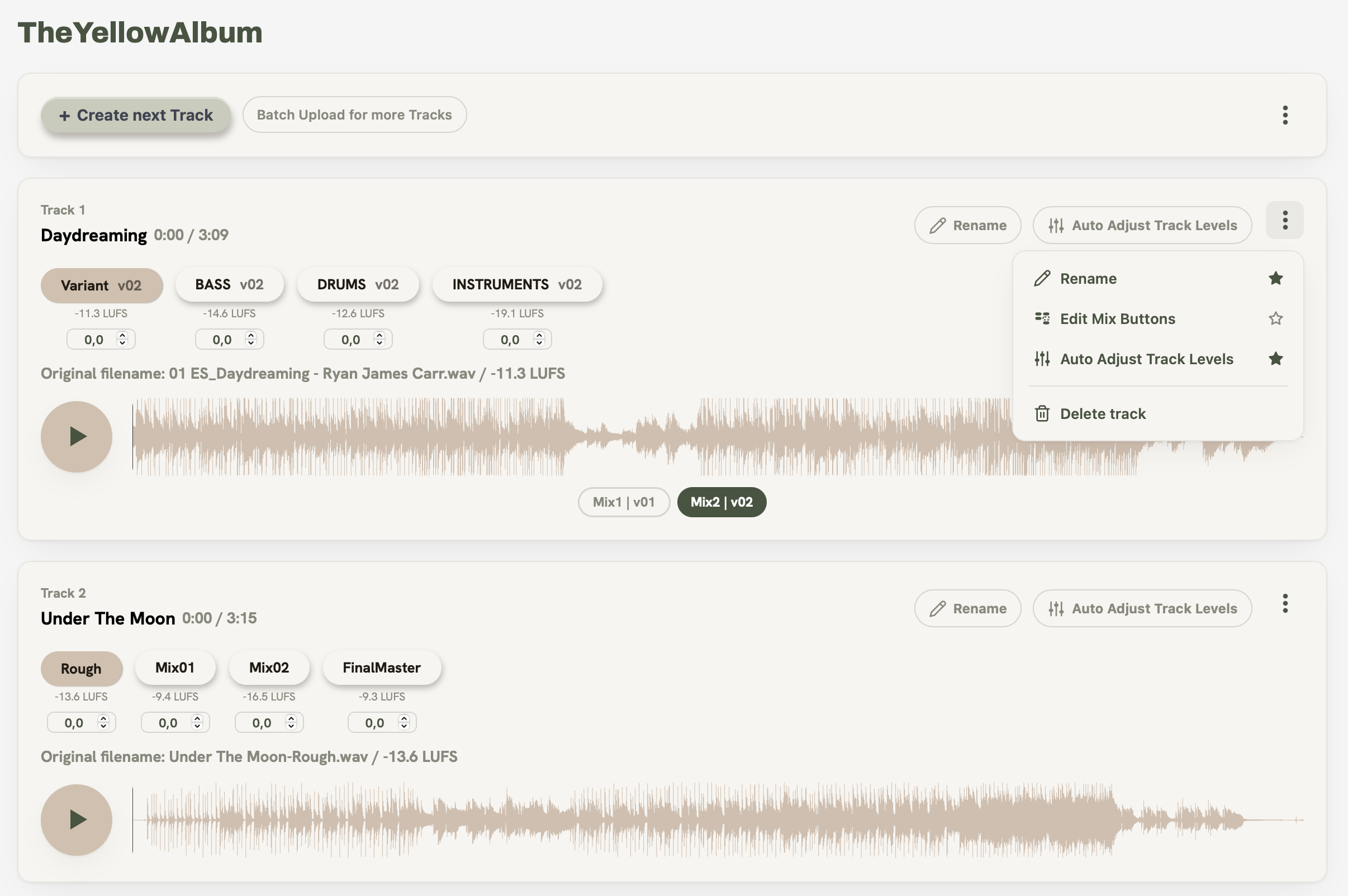
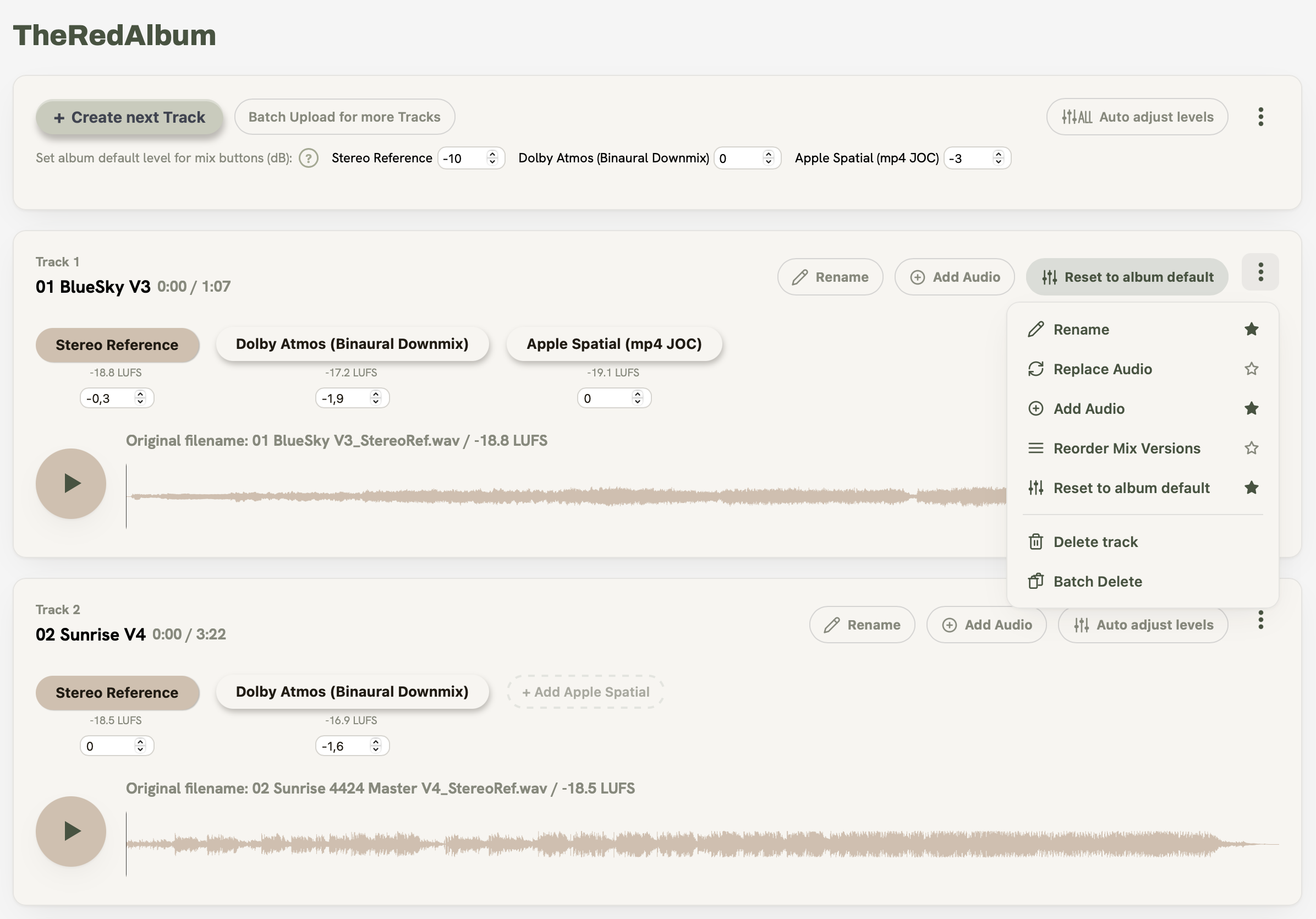
The album view is your main workspace. Here you manage tracks, mix versions, mix buttons, and levels.
Stereo albums
Immersive albums
Favorites in the header
The actions you use all the time can sit right in the header instead of the ⋮ menu. Every entry that can be a favorite has a small star on the right. Tap the star and it fills: the entry now also shows as a button in the header that menu belongs to.
- Album menu (in the row with Batch Upload): favorites show in the album header. Here you find Rename, Reorder Tracks and the album level button.
- Track menu: favorites show in every track header. In Stereo albums that is Rename, Edit Mix Buttons and the track level button. In Immersive albums it is Rename, Replace Audio, Add Audio, Reorder Mix Versions and the track level button.
- Rename has its own star in each menu, so you can keep it in the album header, in the track headers, or in both.
- The level buttons start as favorites. Tap their star to move them back into the menu.
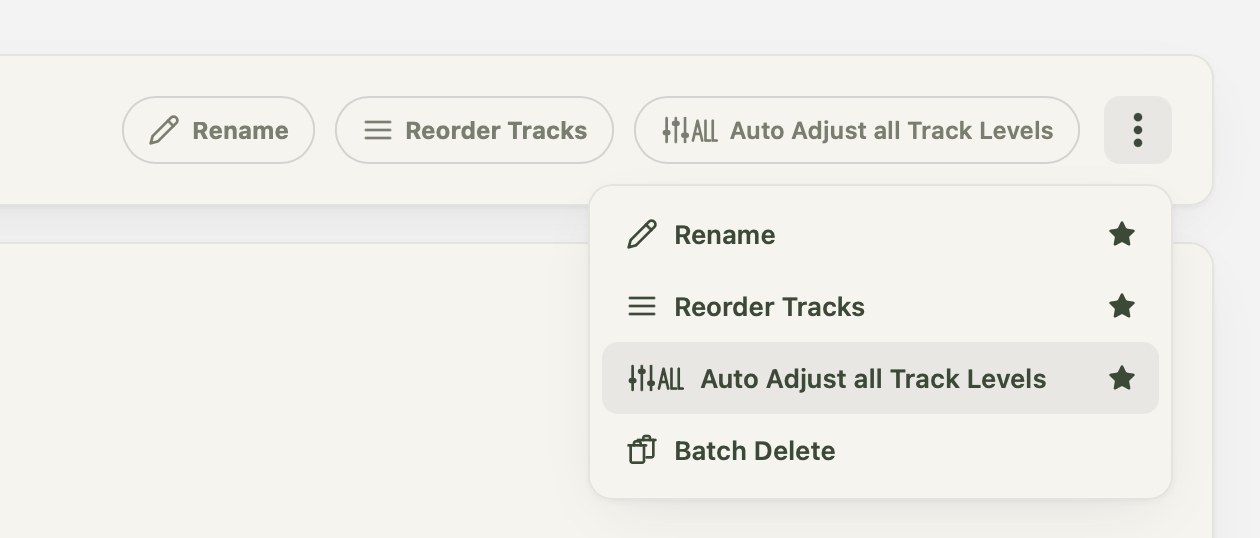
When a favorite starts a mode, its button turns green and reads Done, for example Done renaming. Tap it again to leave the mode, or use the menu or the action bar. On a narrow screen the buttons turn into icons first and then wrap to a second line. They never disappear.
Reorder Tracks
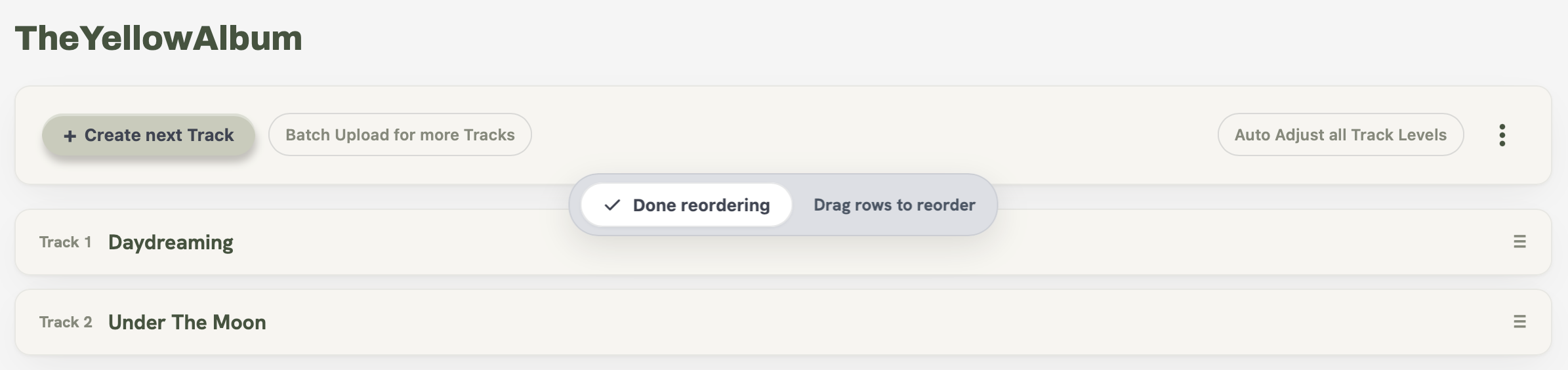
Open the album ⋮ menu (in the row with Batch Upload, or at the top right) and choose Reorder Tracks. You can also star it there to keep it in the album header. The tracks collapse into rows: drag a row by its handle to a new position, then click Done reordering. The new order is shown to your clients right away.
Renaming and deleting
- Click the pencil icon next to a track name or mix version name to rename it inline.
- Use Delete track to remove a track and all its mix versions and mix buttons permanently.
- Use Delete mixversion to remove a single mix version (and its mix buttons) from a track.
Level settings
Different mix buttons naturally have different loudness levels. Level settings let you compensate for this so clients always hear a fair, consistent comparison, without any mix sounding louder just because of its format.
Auto Level reads the measured LUFS (integrated loudness) of each mix, measured during upload via FFmpeg, and automatically calculates the gain needed to bring all mixes to the same perceived loudness. It uses the quietest mix as the reference and adjusts all others downward to match. This way no clipping occurs and no limiting is needed.
- Click Auto Level on a track version.
- MixReview calculates and fills in the gain values automatically based on the LUFS of each mix.
- You can still adjust individual values manually afterwards.
- Click "Reset to album default" to go back to the album-level settings.
Playback shortcuts
- Space bar: Start or pause playback.
- 0: Return the playhead to the beginning.
Edit Mix Buttons
In Stereo albums one mode covers everything around a track's mix buttons. Open the track ⋮ menu and choose Edit Mix Buttons, or tap its button in the track header if you made it a favorite. The track then shows all its mix buttons and versions as a grid.
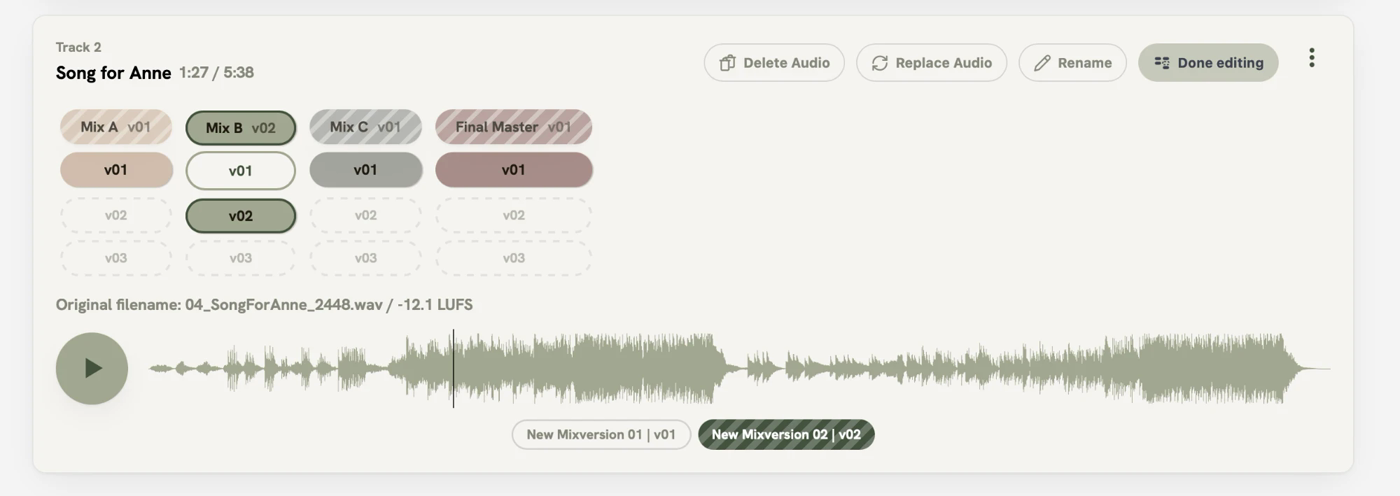
- Reorder: drag a mix button by its name to another spot. The color stays with the spot, the name moves with the button.
- Swap: drag a version onto another cell to swap the two. Onto a free cell it simply moves there.
- Add audio: click a dashed cell to upload a file there, below a mix button as its next version or in a free spot as a new mix button.
- Replace Audio and Delete Audio sit in the track header while the mode is on. Pick one, then click the cells it should apply to.
Click Done editing in the track header or in the action bar to leave the mode. Playback stops while you move things around.
Adding, replacing or deleting single mixes (Immersive)
In Immersive albums you find these in the ⋮ menu of a track. Batch Delete is also in the album menu. In Stereo albums all of it lives in Edit Mix Buttons (see above).
- Add Audio opens a + Add mix version vN button below every mix button. Click one to upload a file as that version of that mix. An empty mix button also shows as a dashed button, for example "+ Add Apple Spatial".
- Replace Audio swaps the file behind one mix button. The LUFS value is measured again after the upload.
- Reorder Mix Versions changes the order of a track's mix versions.
- Batch Delete opens the same rows for deleting. Click a single file, a whole mix button or a whole mix version.
6. Allowing Downloads
By default, your clients can only stream the audio in their browser. They cannot save the files to disk. If you want to let them download the final mixes (for example to listen offline, to forward to a third party, or to keep a copy for their archive), you can enable downloads per album.
Enabling downloads for an album
- Open your Stereo album in the dashboard.
- In the Clients card, you'll see an Allow downloads toggle on the right. Click it to enable.
- The toggle takes effect immediately. All clients of this album will see a new Select mixes to download button at the top of their album view on their next page load.
- Click again to disable. The button disappears for clients, no further downloads possible.
What clients see
Once you've enabled downloads, your clients can pick which mixes they want and download them as a single ZIP file:
- Client clicks Select mixes to download in the album header. All mix buttons (the colored badges next to each mix version) get an emerald-green ring.
- Client clicks each mix they want: selected ones light up with a brighter ring + glow + soft tint. They can mix and match across tracks and versions.
- Client clicks Download N mixes. A confirmation modal lists every file that will be in the ZIP, with its final name.
- Client confirms, and the ZIP downloads via their browser, in the background, while they can keep listening to your album in the page.
How files are named in the ZIP
Each file in the ZIP is named like this:
<original filename> — <variant label in lowercase>.<ext>
Example: if you uploaded MyMix_v3.wav and named the mix button Drums, the file in the ZIP will be MyMix_v3 — drums.wav. The mix button suffix is always appended, even if the original name already contains it. This keeps the names predictable for the client and prevents collisions when they pick multiple mixes of the same track.
Privacy & security
- The download URL does not expose any storage paths: the files are served through the same encrypted streaming infrastructure as playback.
- Downloads are tied to the client's session: only logged-in clients of the album can trigger them.
- Every download attempt is logged (which client, which mixes, success or failure). You don't see this in the dashboard yet, but it's available for audit and support if anything goes wrong.
7. Plan, Storage & Account
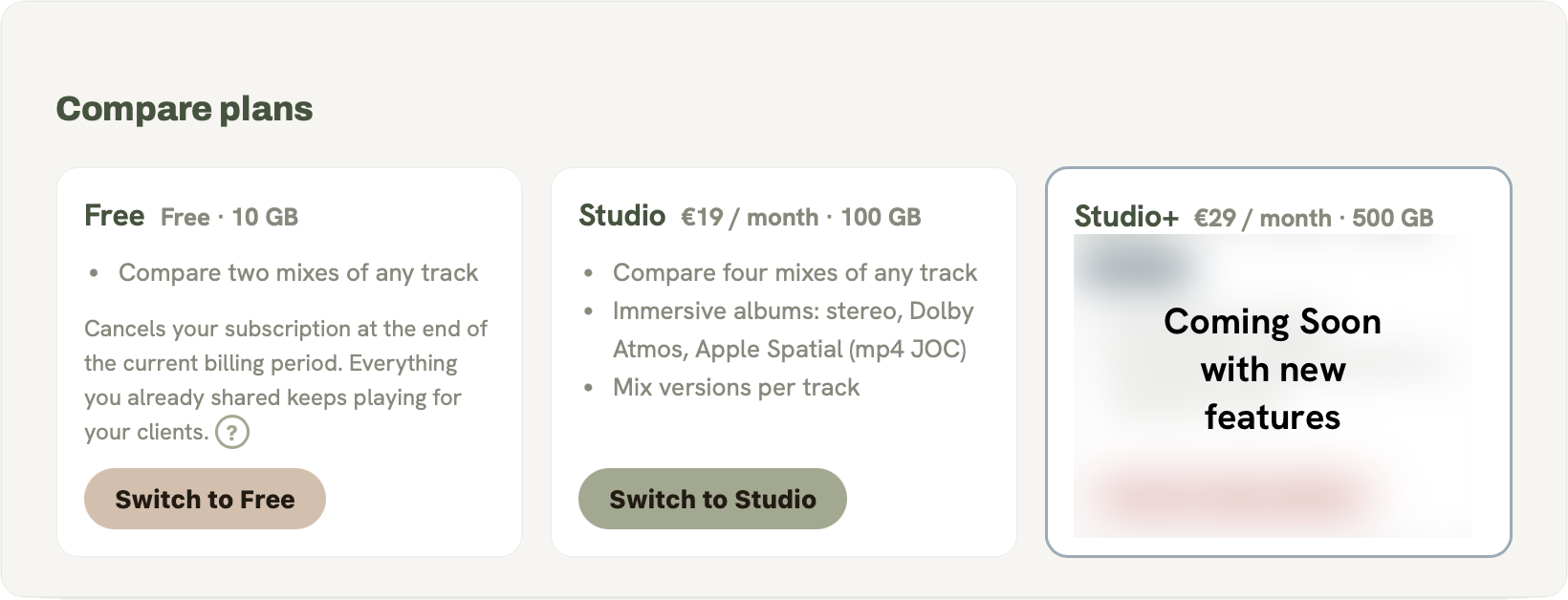
You can view and change your plan anytime under Plan & Storage in the dashboard. Your current storage usage, next billing date and available plans are all shown on one page.
Which plan you need depends on the album you want to create:
Use this album to compare one mix with another. A rough mix with the mix, or the full mix with a single instrument stem.
Switching plans
- Upgrades take effect immediately.
- Downgrades are scheduled for the end of the current billing period. You can cancel a scheduled downgrade at any time before it takes effect.
What happens when you downgrade
If your storage usage is above the limit of the new plan, everything stays playable for you and your clients, but new uploads are locked until your usage is below the limit again. Delete tracks or albums to free up space.
What each plan includes:
- Free: Stereo albums with up to two mixes per track. Mix versions and Immersive albums are part of Studio.
- Studio: Stereo Reference, Dolby Atmos Binaural and Apple Spatial (mp4 JOC) for Immersive albums. All 4 mix buttons for Stereo albums.
Nothing gets hidden. It's your music. If you downgrade from Studio, the mixes you already uploaded stay right where they are. Mix buttons 3 and 4 keep playing, for you and for your clients. A link you already sent does not get worse, and your clients never notice your plan at all.
What changes is only what comes next: on Free you can keep two mixes per track, so mix buttons 3 and 4 can be played and deleted, but not replaced and not refilled. New mix versions are not available either. Upgrade at any time and all four mix buttons are fully yours again. Nothing needs to be re-uploaded.
Deleting your account
You can delete your account at any time from the Projects page. In accordance with GDPR Art. 17 (right to be forgotten), all personal data and files are irrevocably removed from our systems.
- Open the Projects page in your dashboard.
- Click "Delete account" in the top-right corner of the page.
- Read the confirmation dialog carefully.
- Type "delete" in the confirmation field to enable the button.
- Click "Delete account" to confirm. You will be signed out immediately.
8. iOS App
MixReview is available as a native iOS app, optimized for the best possible listening experience, especially for spatial audio formats.
Why use the iOS app?
Download
⬇ Download on the App StoreRequires iOS 17.2 or later. Same login as your MixReview web account.
Help version 0.4.64