Favorites in the header, and Edit Mix Buttons
Two changes to how you work in an album: the actions you use all the time move out of the ⋯ menu and into the header, and stereo tracks get a single mode for editing their mix buttons.
Favorites in the album and track header
Every ⋯ menu entry you can pin now has a small star on the right. An outlined star means the entry lives in the menu only. Tap the star and it fills: the entry now also appears as a button in the header that menu belongs to.
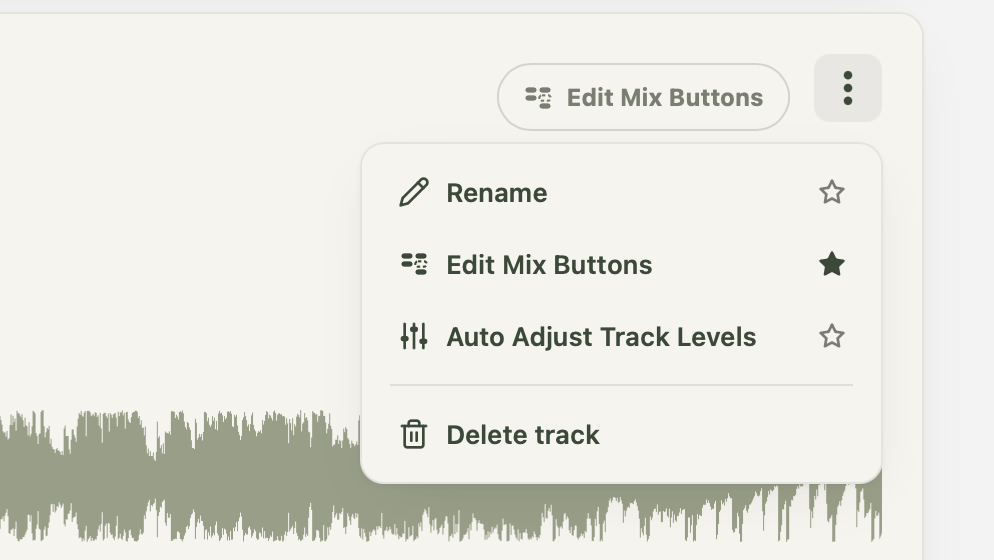
- Album menu favorites show up in the album header, next to Create next Track and Batch Upload.
- Track menu favorites show up in every track header, in every album of the same type.
- Rename can be a favorite in the album header, in the track headers, or both. Pick what fits the way you work.
- The level buttons start as favorites, so your headers look the same as before until you change something.
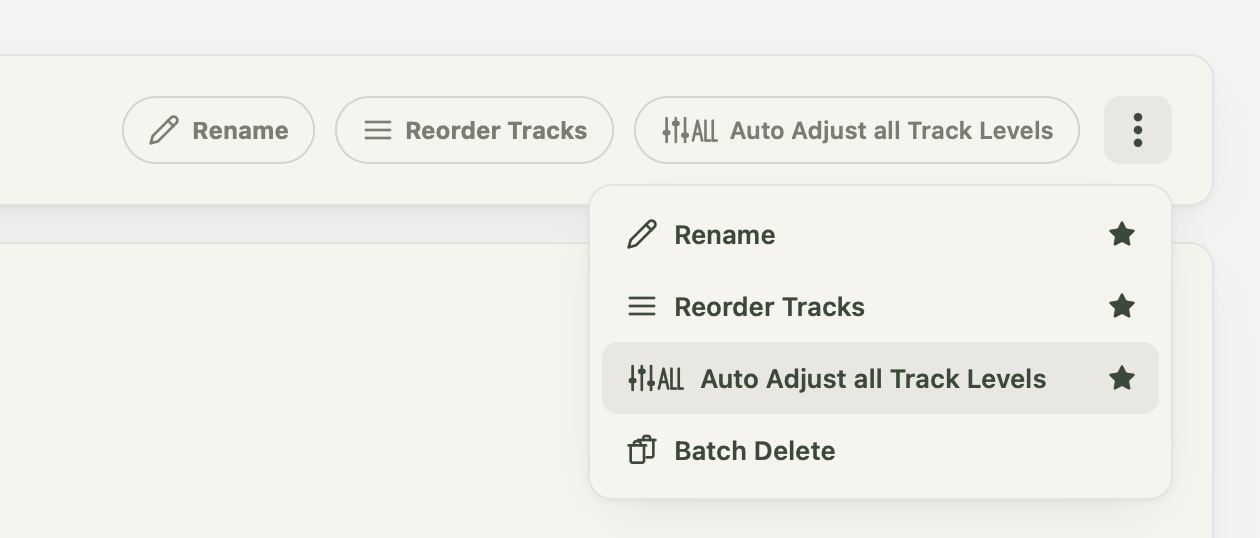
When a favorite starts a mode, such as Rename, its button turns green and reads Done renaming. Tap it again to leave the mode, or use the menu or the action bar as before. On a narrow screen the buttons turn into icons first and only then wrap to a second line. Nothing ever disappears.
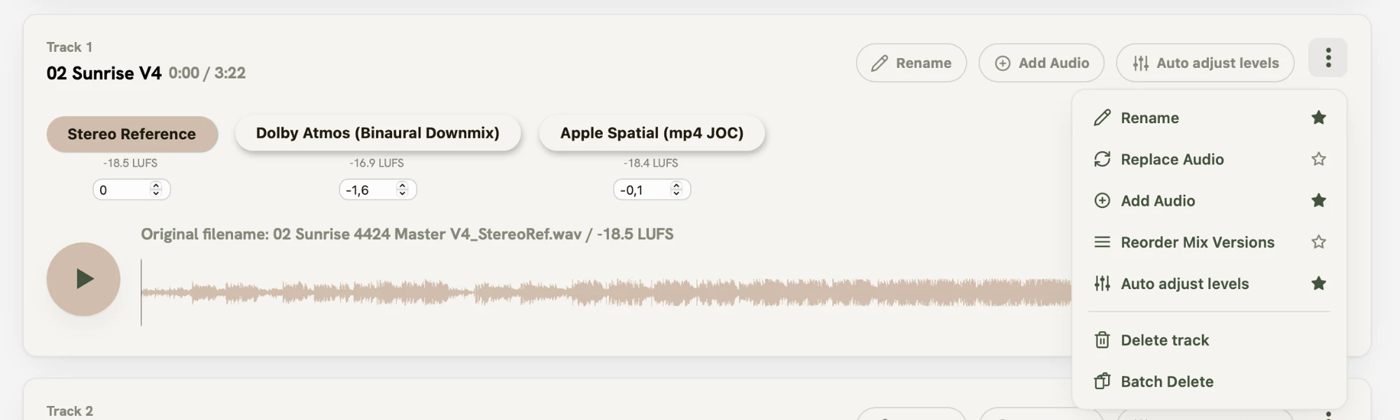
In immersive albums
Replace Audio, Add Audio and Reorder Mix Versions moved into the track menu, so you can star them for the track header. Reorder Tracks now lives in the album menu only, since it sorts the whole album.
Edit Mix Buttons in stereo albums
Reordering, swapping, adding, replacing and deleting audio used to be four separate modes. In stereo albums they are now one: open Edit Mix Buttons from the track menu, or from the track header once you have starred it.
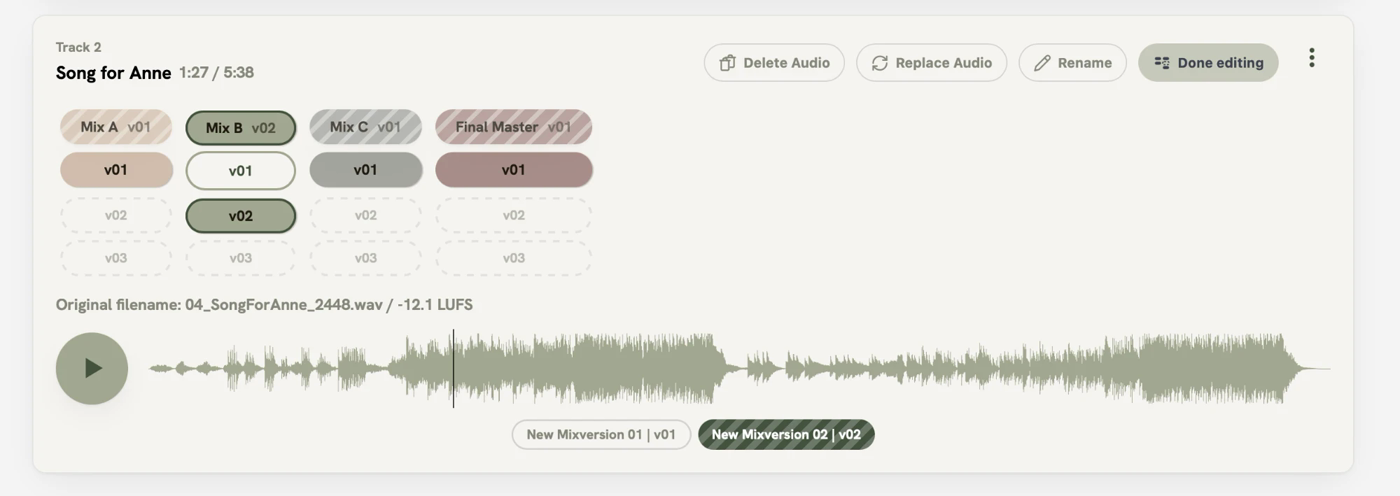
- Reorder and swap: drag a mix button to another spot, or drag a version onto another button to swap them.
- Add audio to a free spot or as the next version.
- Replace Audio and Delete Audio sit in the track header while the mode is on.
Done editing in the header or the action bar takes you out again.